
Students receive lesson recommendations based on their writing performance and can select and view lessons of their choosing. Teachers can preview lessons and assign specific lessons to individual students or an entire class.
Lessons are interactive, requiring students to drag, drop, click, or answer questions as they practice a writing skill. If a student responds to an interaction incorrectly, they may correct their response. Lessons do not provide a grade or a score.
Previewing Lessons
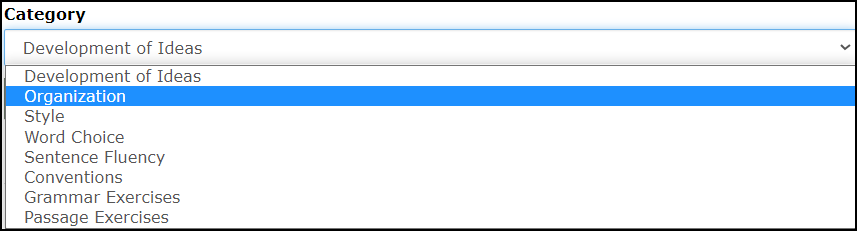
On the Lessons tab, the Lesson Library sub-tab displays the title, difficulty level, approximate completion time, status, and description for each lesson. Lessons are categorized by trait and include grammar and passage exercises. You can also filter by difficulty level.

1. To preview a lesson, select a Category.
2. If desired, choose a Difficulty Level.

3. Click a lesson Title to view the lesson.

Assigning a Lesson
1. To assign a lesson, on the Lesson Library sub-tab, click the + Assign Lesson button.

2. The Assign Lessons page displays with two steps. Select the desired lesson(s) in step one and then click Next Step. You can search for lessons by keyword or category in the Filters section.

3. Search for students by name or filter by grade. Check the box at the top of the Name column to assign the lesson(s) to the entire class or check the boxes next to student names to assign the lesson(s) to individual students or groups of students.
4. Click Assign Selected to confirm your choices.

The assigned lesson(s) will appear at the top of the Lessons tab under the Assigned Lesson Activity sub-tab. The lesson completion status will also be shown.
